Tour
See every screen
Every screen below is real. They are filled with a made-up builder, Oakridge Custom Homes, so you can see how it looks with real work in it. All names, addresses and amounts are fictional.
Sample company: Oakridge Custom Homes · fictional
Sign in-
1 Start here
Your workspace
The home screen after you sign in. Big tiles for every job and one-tap setup buttons.
Open full size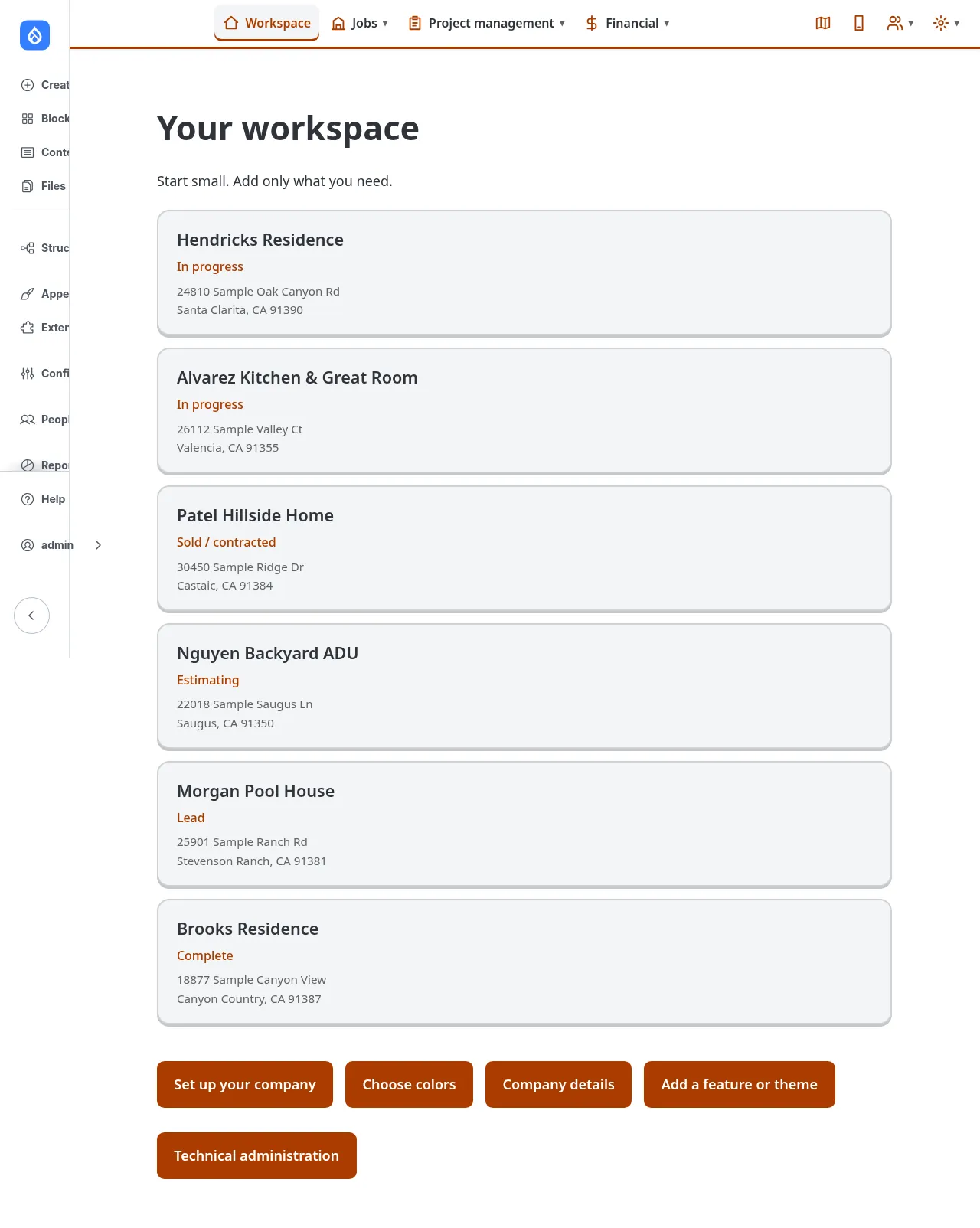
-
2 Start here
Top bar menus
Jobs, Project management and Financial open from any page. Tour, Phone app, Contacts and Settings sit on the right.
Open full size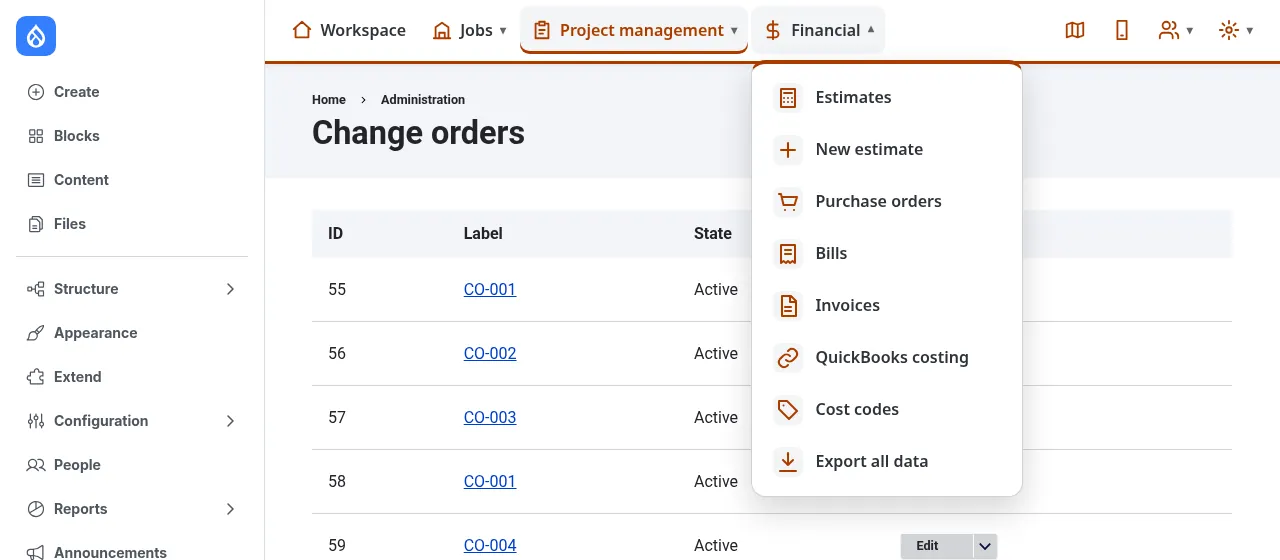
-
-
-
5 Jobs
Job budget
Original, revised, pending, committed and actual cost for each cost code.
Open full size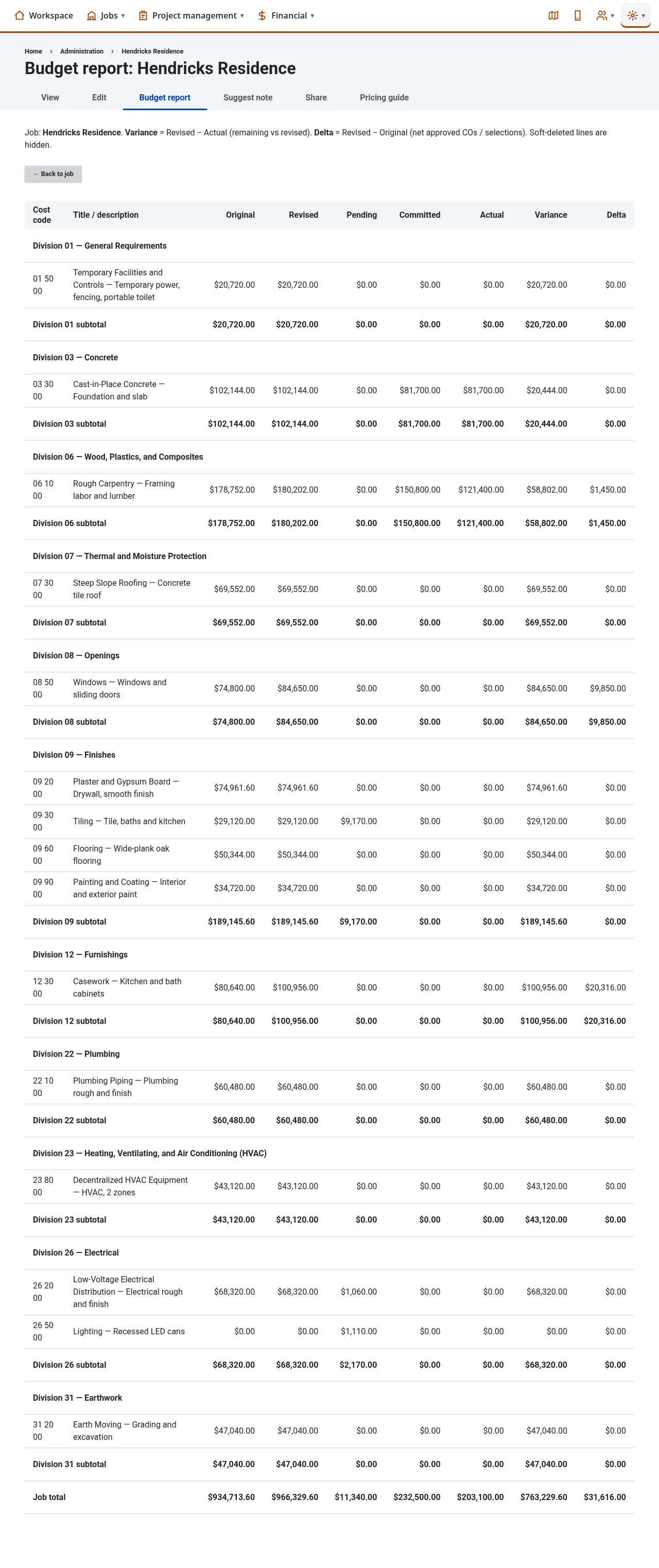
-
-
7 Estimates
Estimate line items
Lines grouped by trade and cost code, with cost type, builder cost, markup (% or $) and client price. Subtotals update as you type; internal notes stay private.
Open full size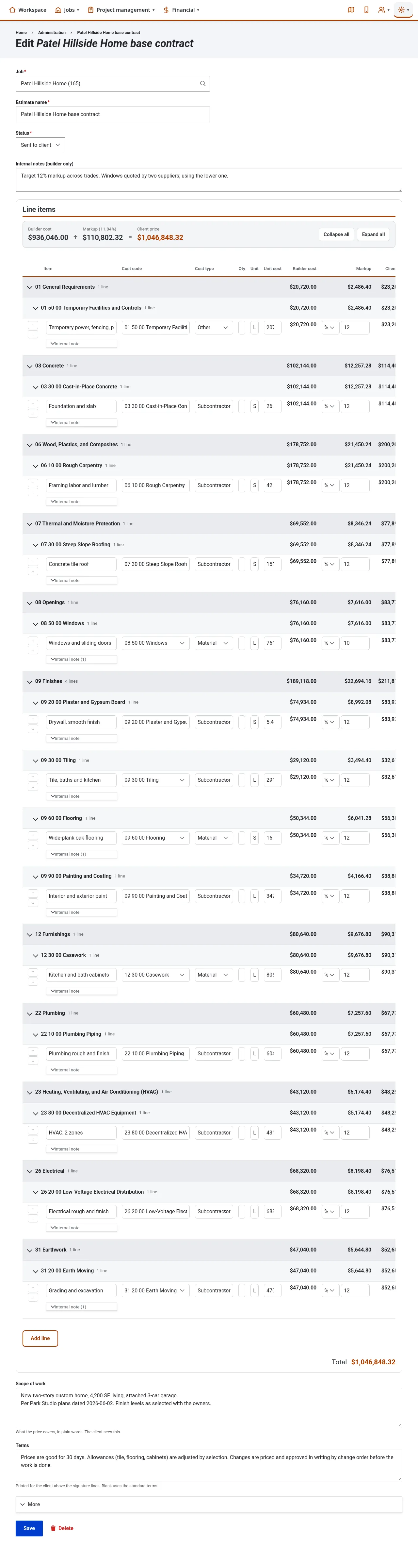
-
8 Estimates
Homeowner copy
A clean page to print or save as PDF: client prices only, grouped by category, with scope, terms and signature lines.
Open full size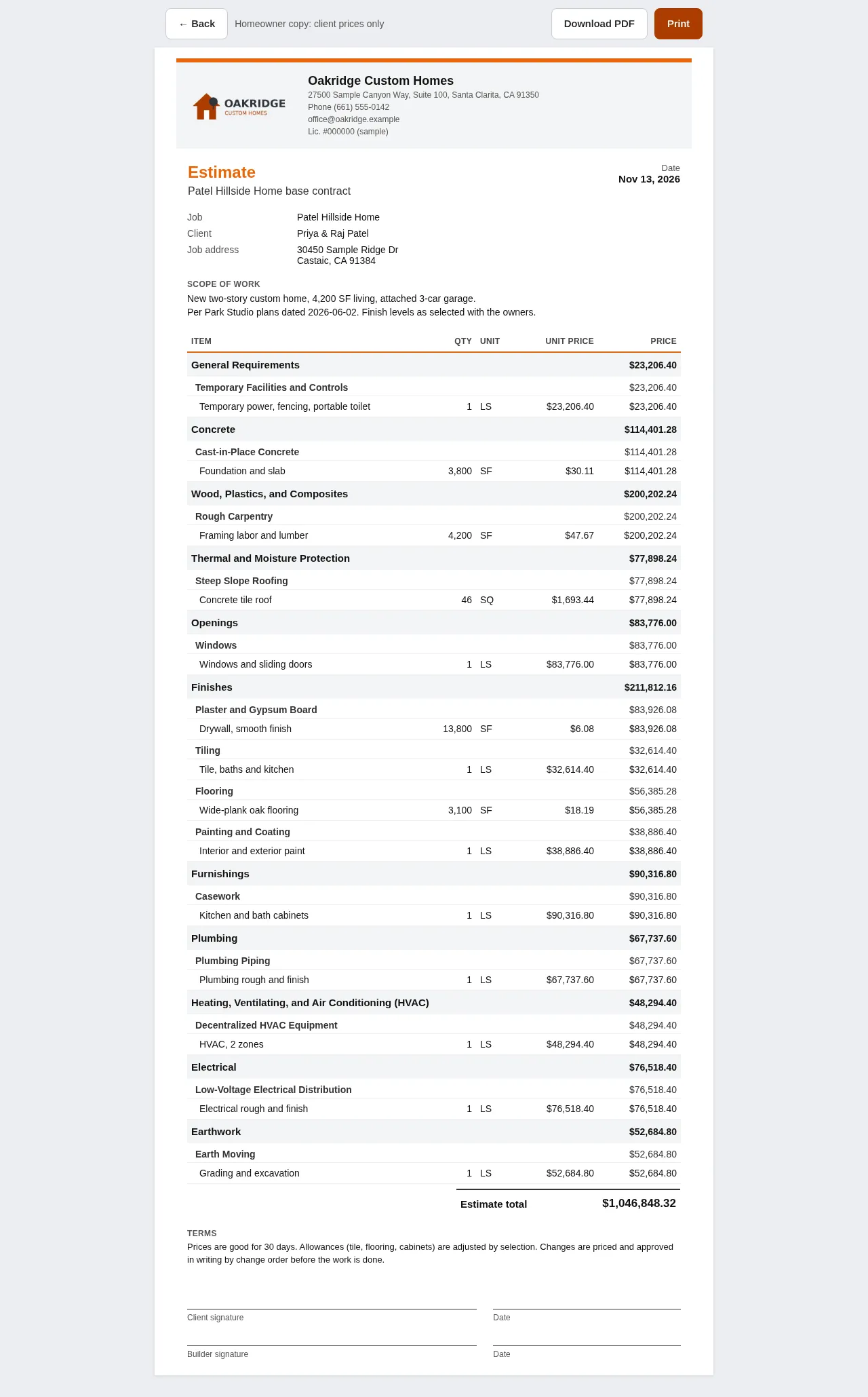
-
9 Estimates
Estimate review
A second look before you send: missing trades, $0 lines and unusual prices. Tap a card to fix that line.
Open full size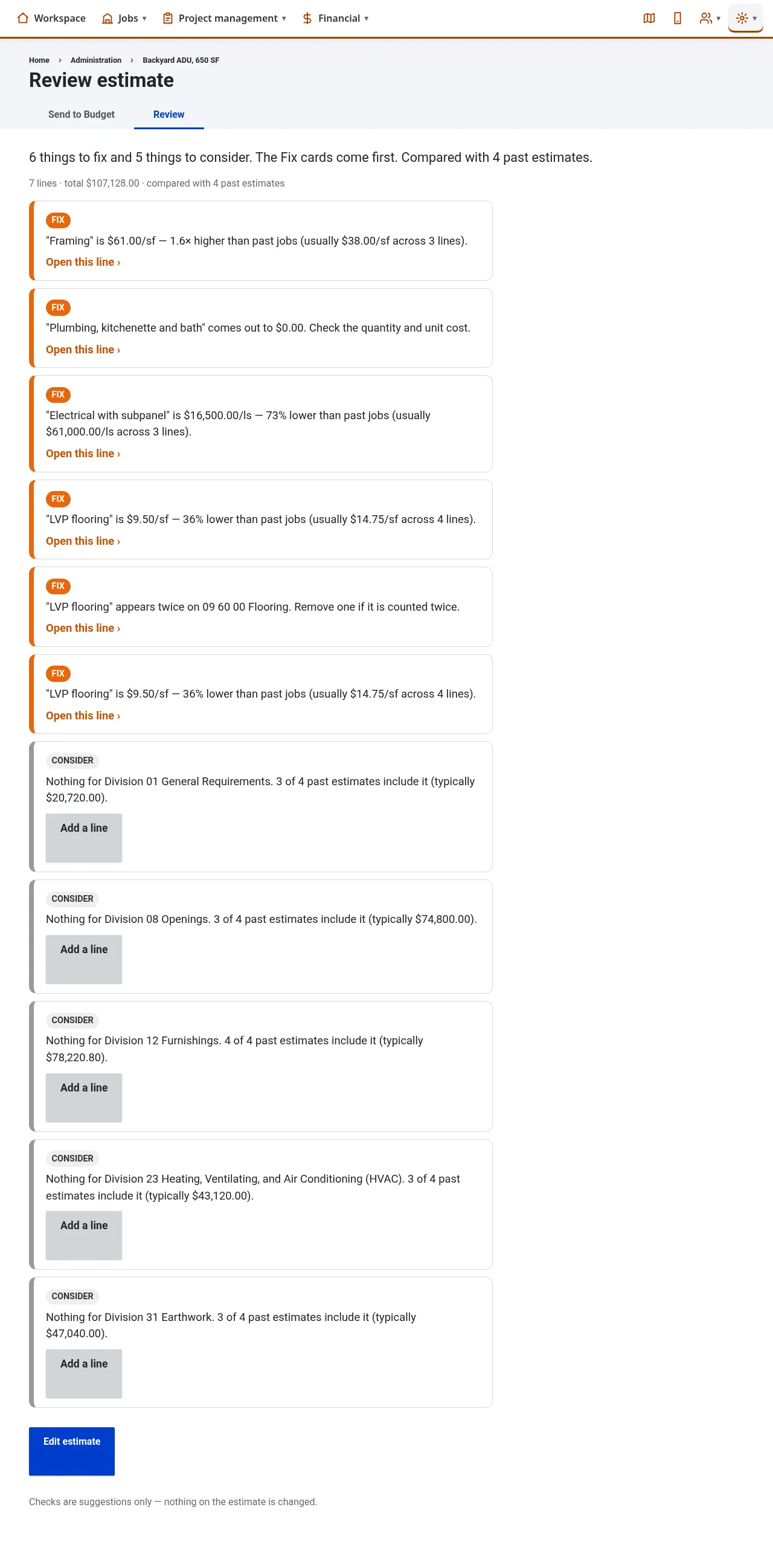
-
10 Change orders
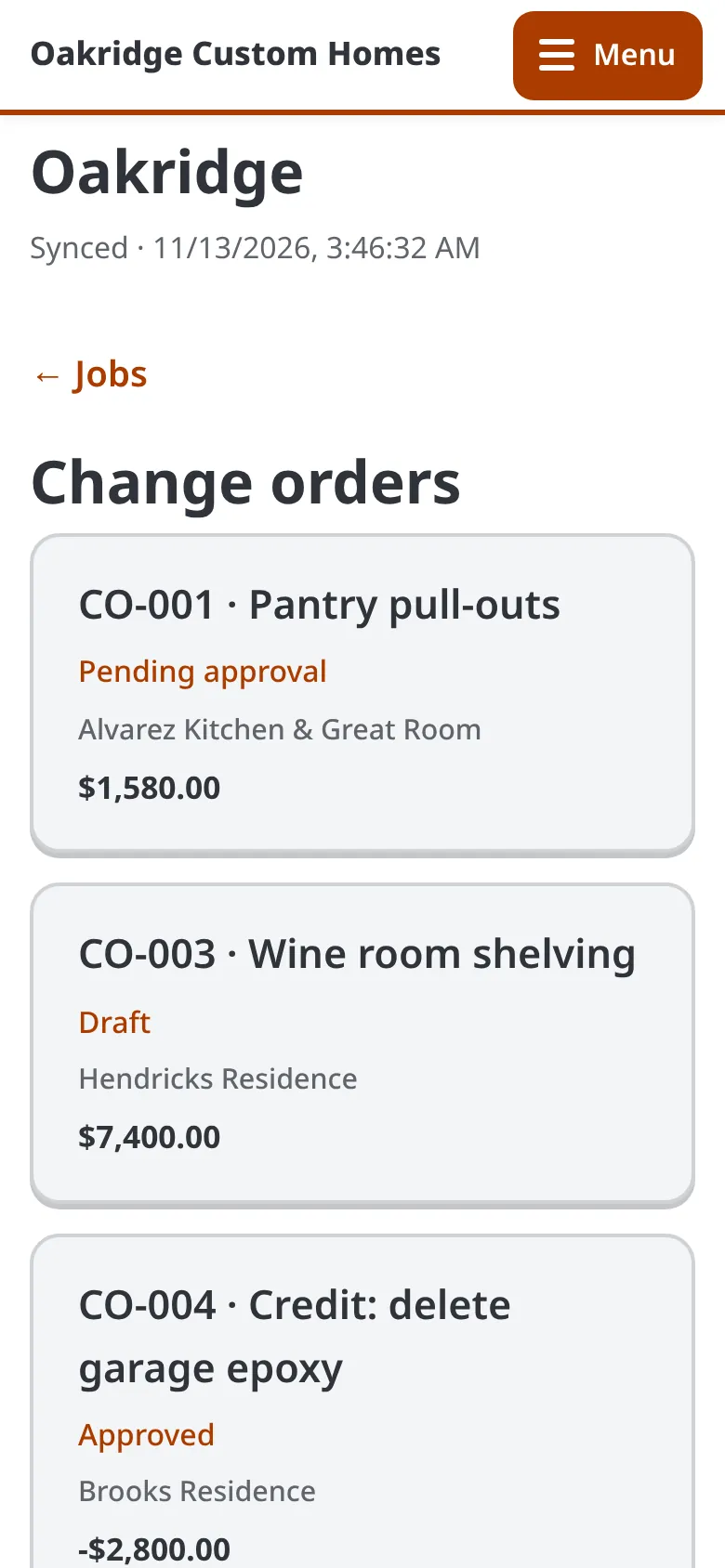
Change orders
Approved, waiting and draft change orders, with totals.
Open full size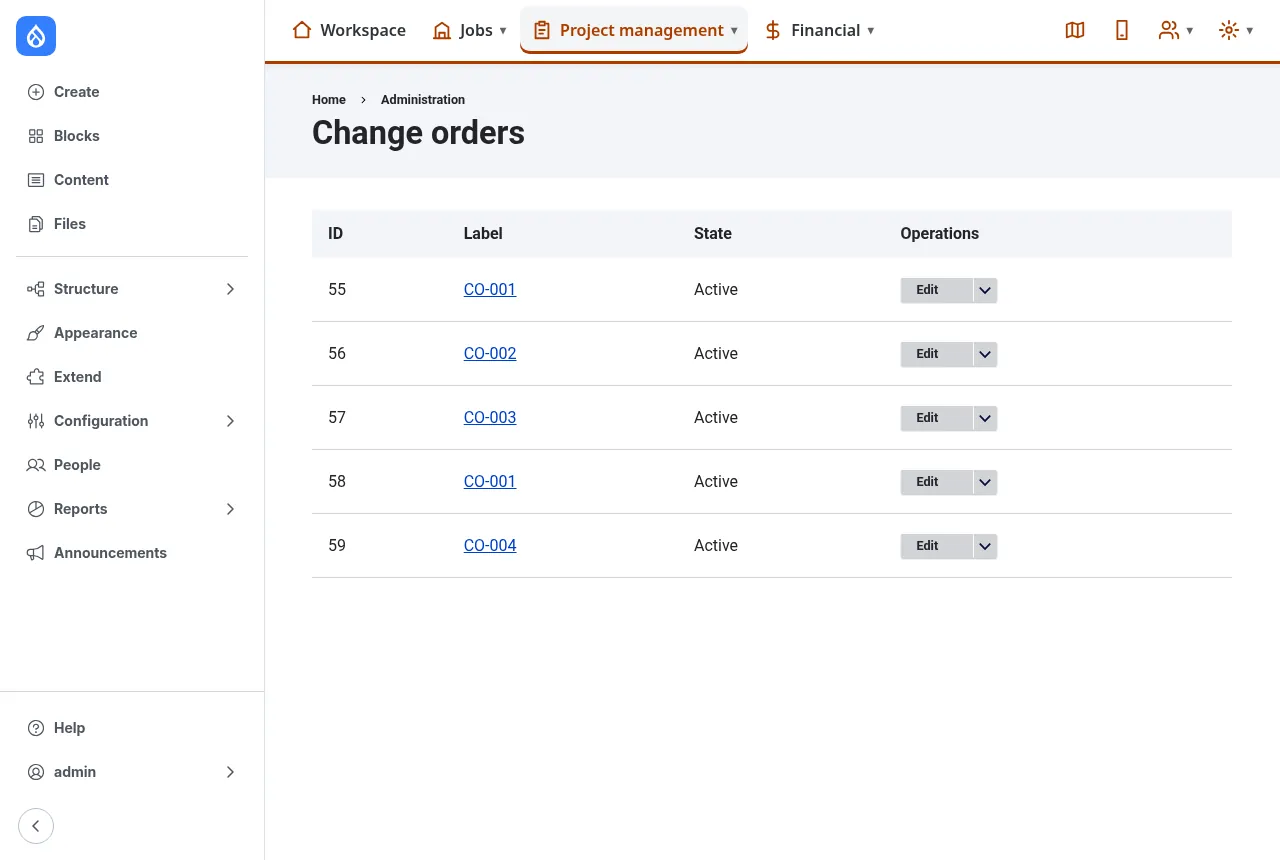
-
11 Change orders
One change order
Status, approval deadline and the change to the contract price, then the grouped lines and the buttons to approve or decline.
Open full size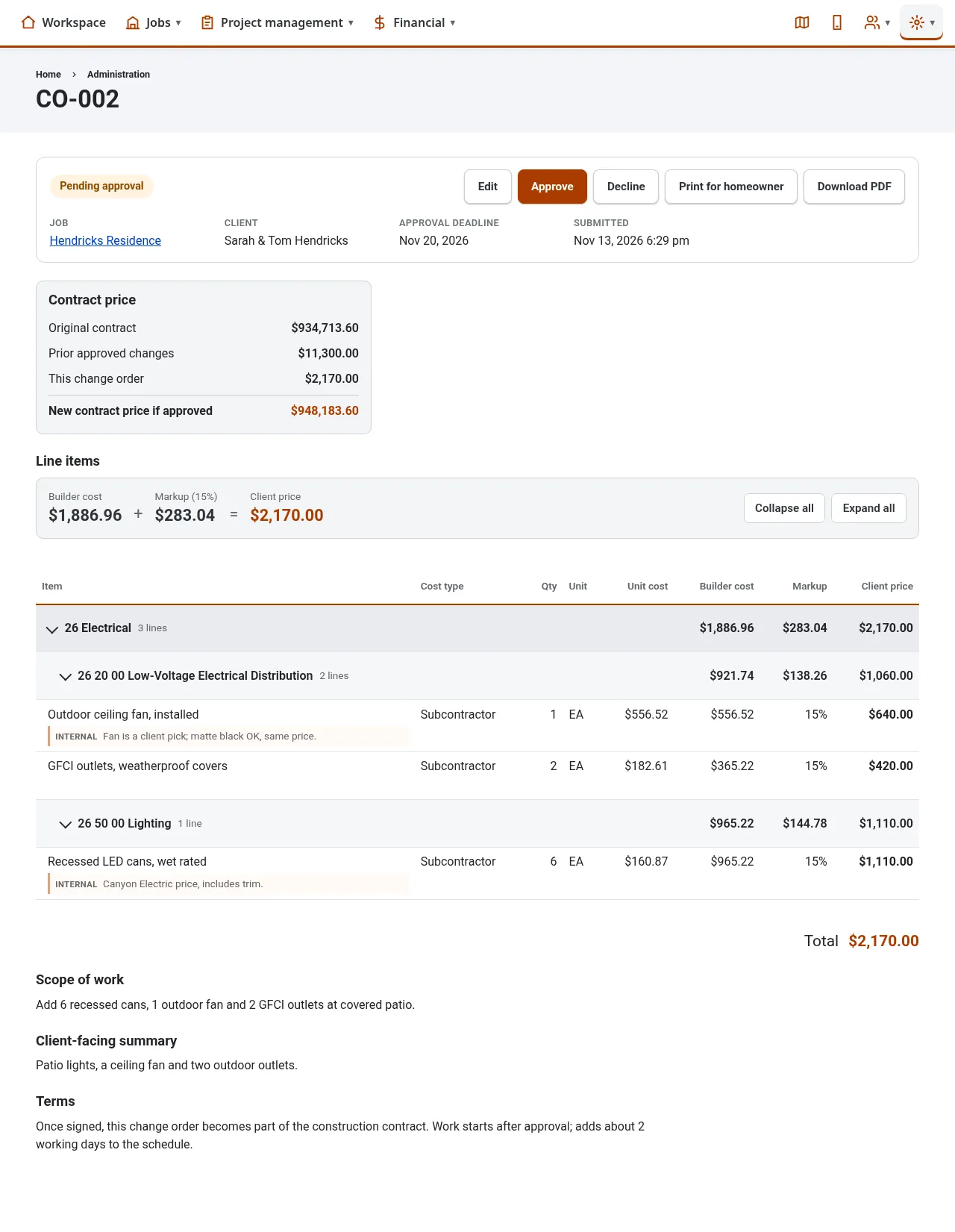
-
12 Change orders
Change order for the homeowner
The same clean copy the client gets by email: client prices, new contract price, terms and signatures.
Open full size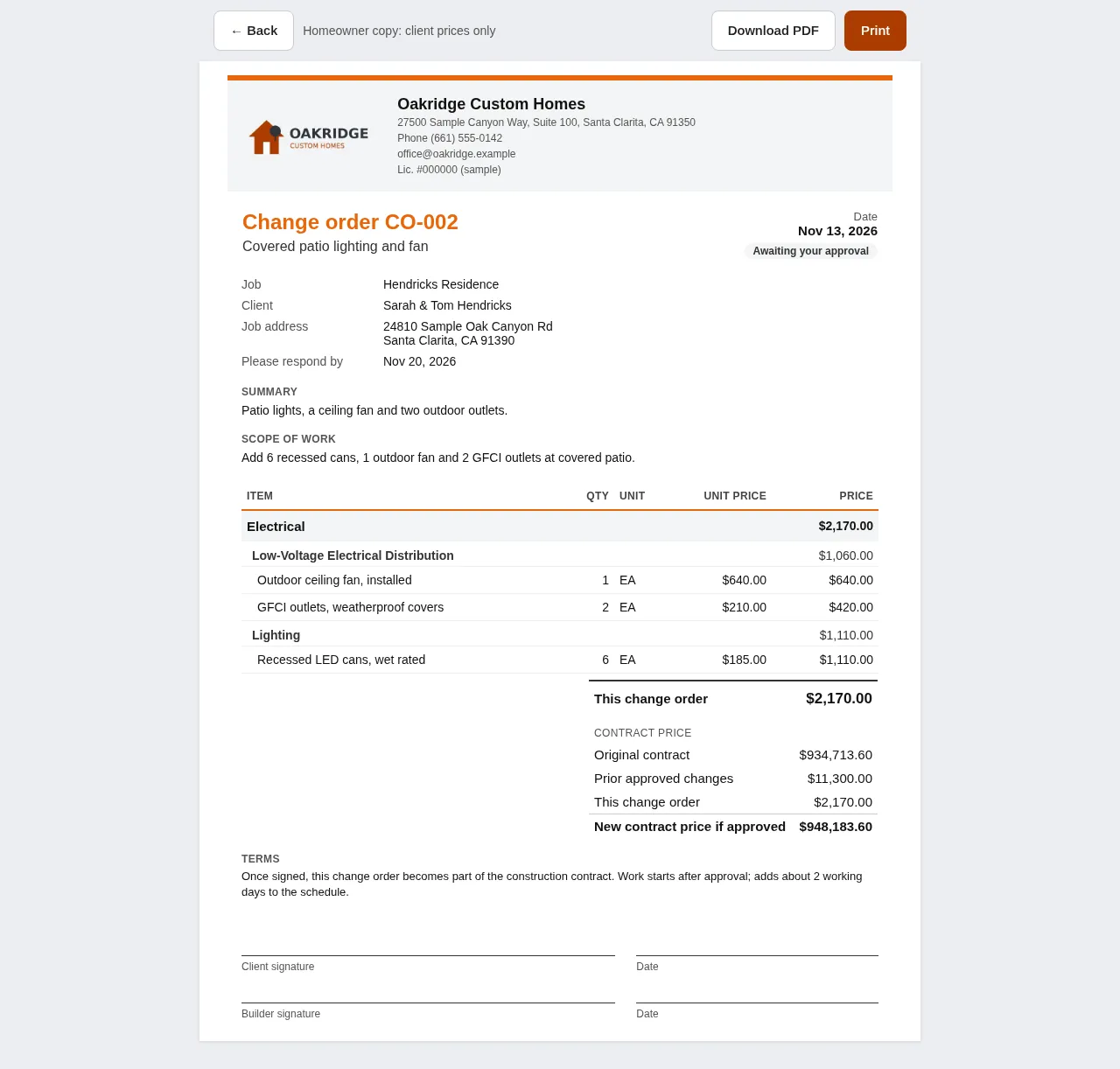
-
13 Change orders
Client email approvals
Clients approve by replying to an email. Replies are read and sorted for you.
Open full size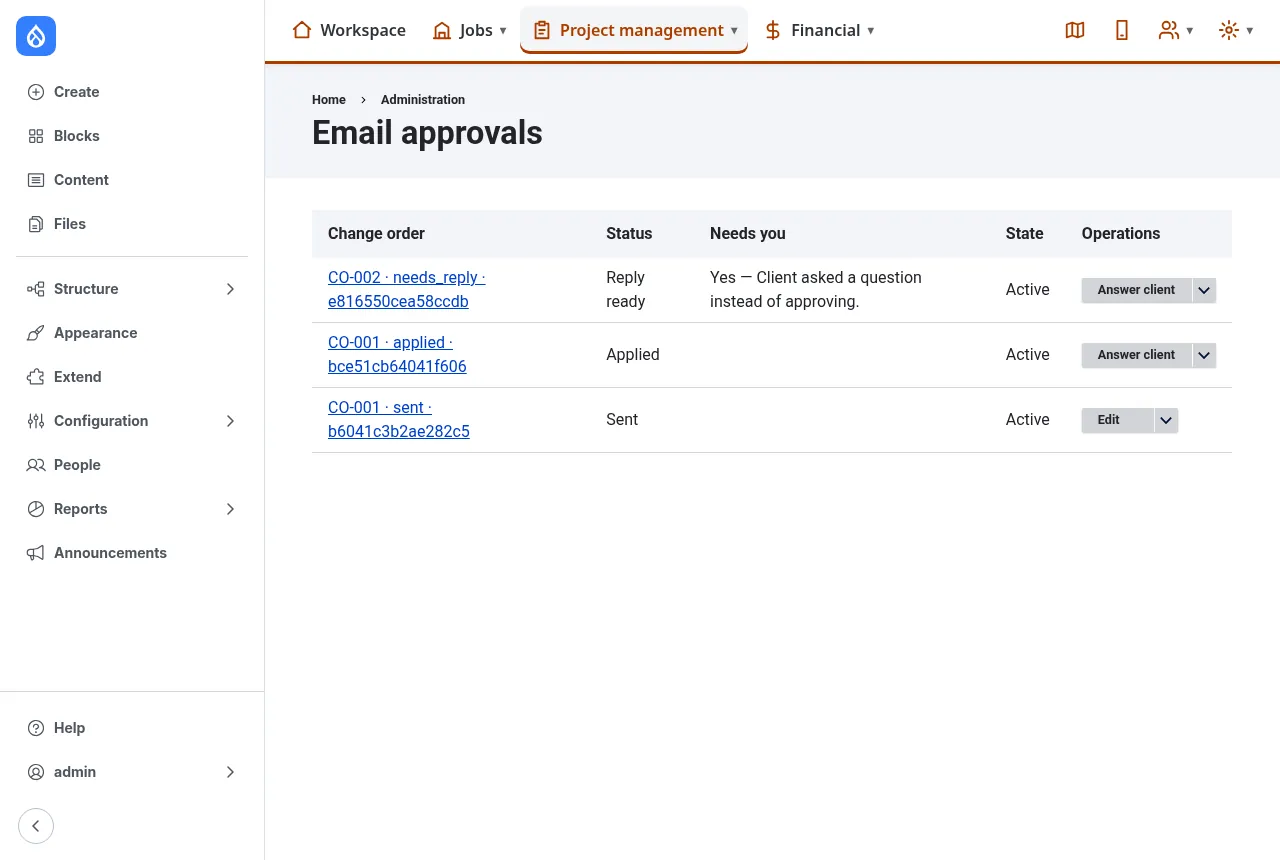
-
14 Change orders
Needs you
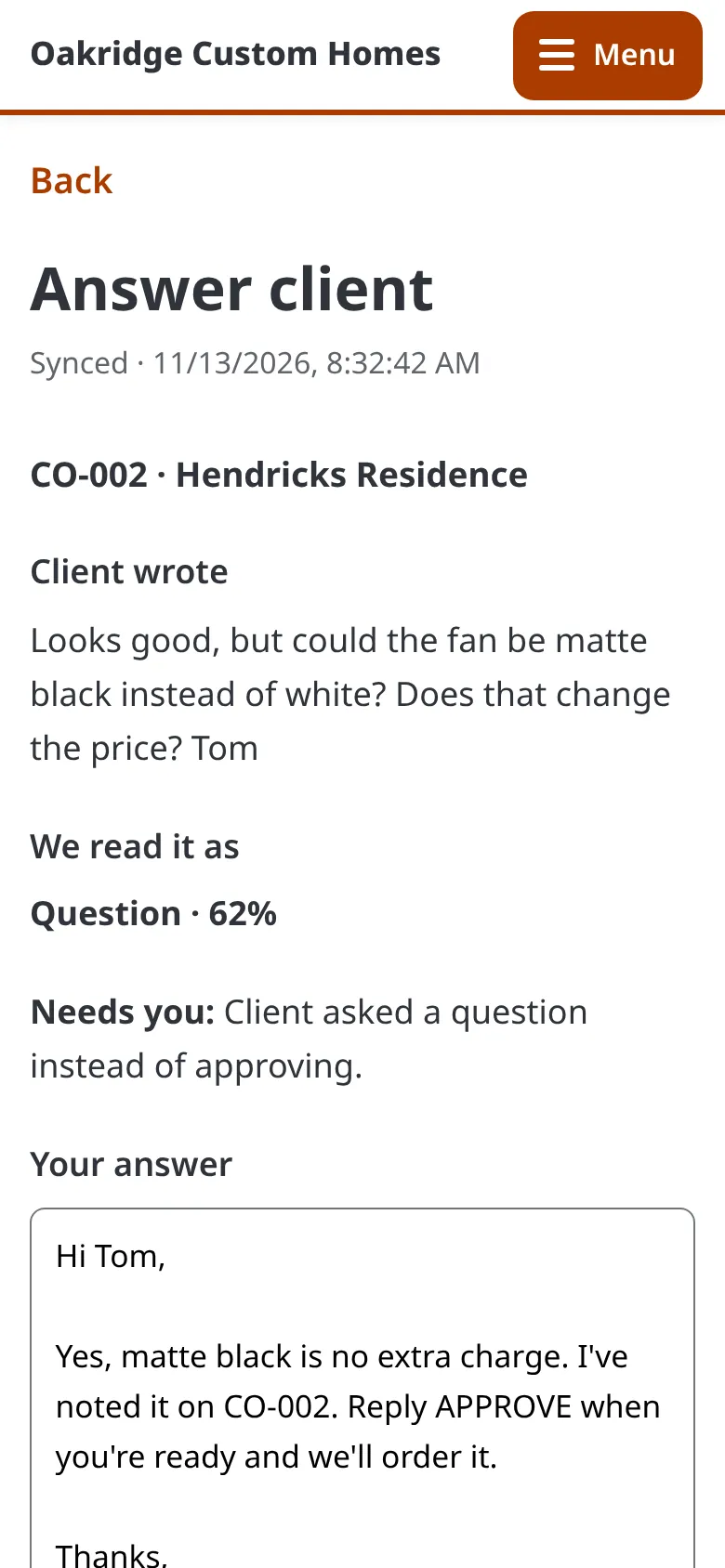
Only the unclear replies come to you, with a drafted answer ready to send.
Open full size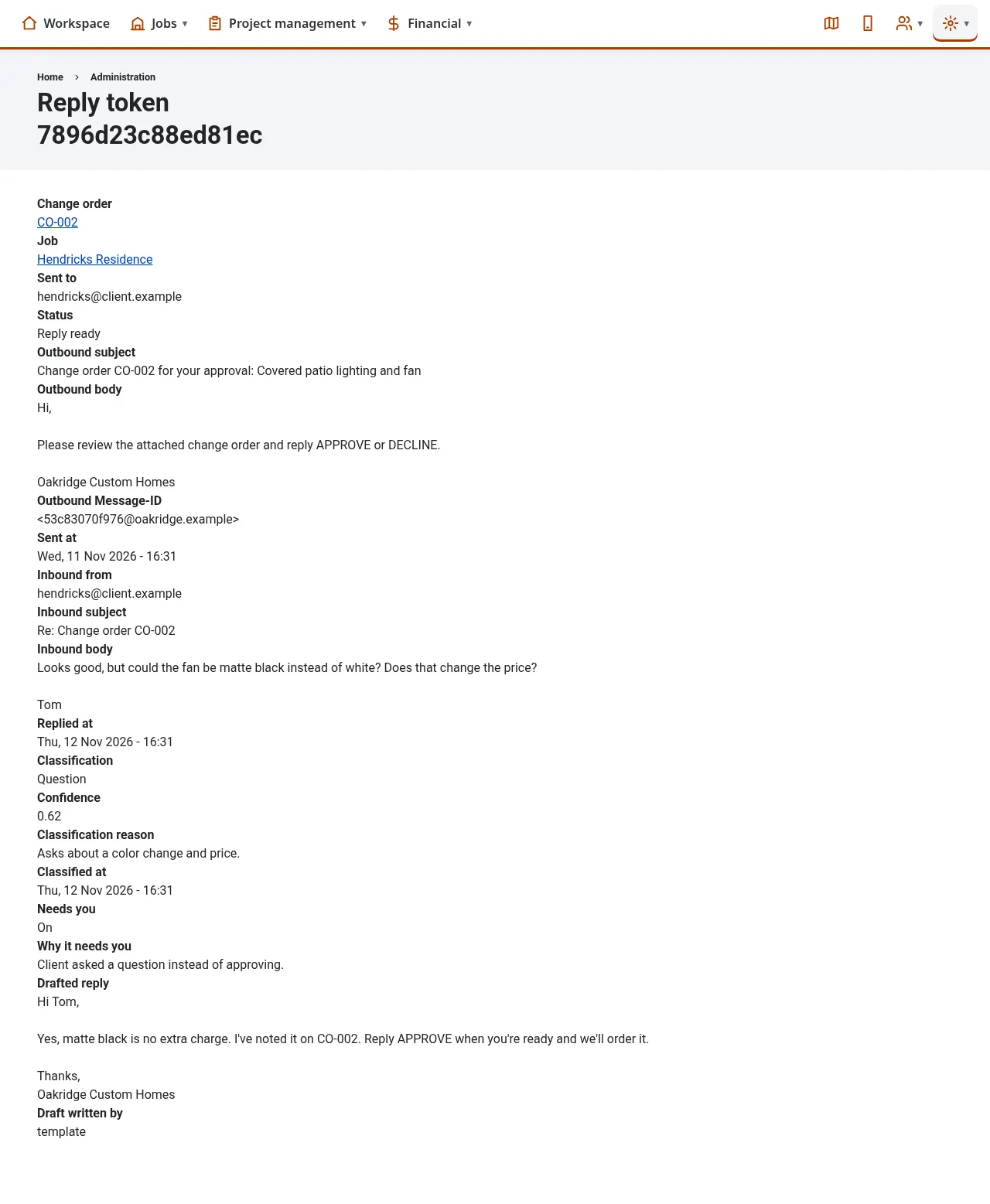
-
15 Selections
Selections
Finishes your client picks, with the allowance next to the real price.
Open full size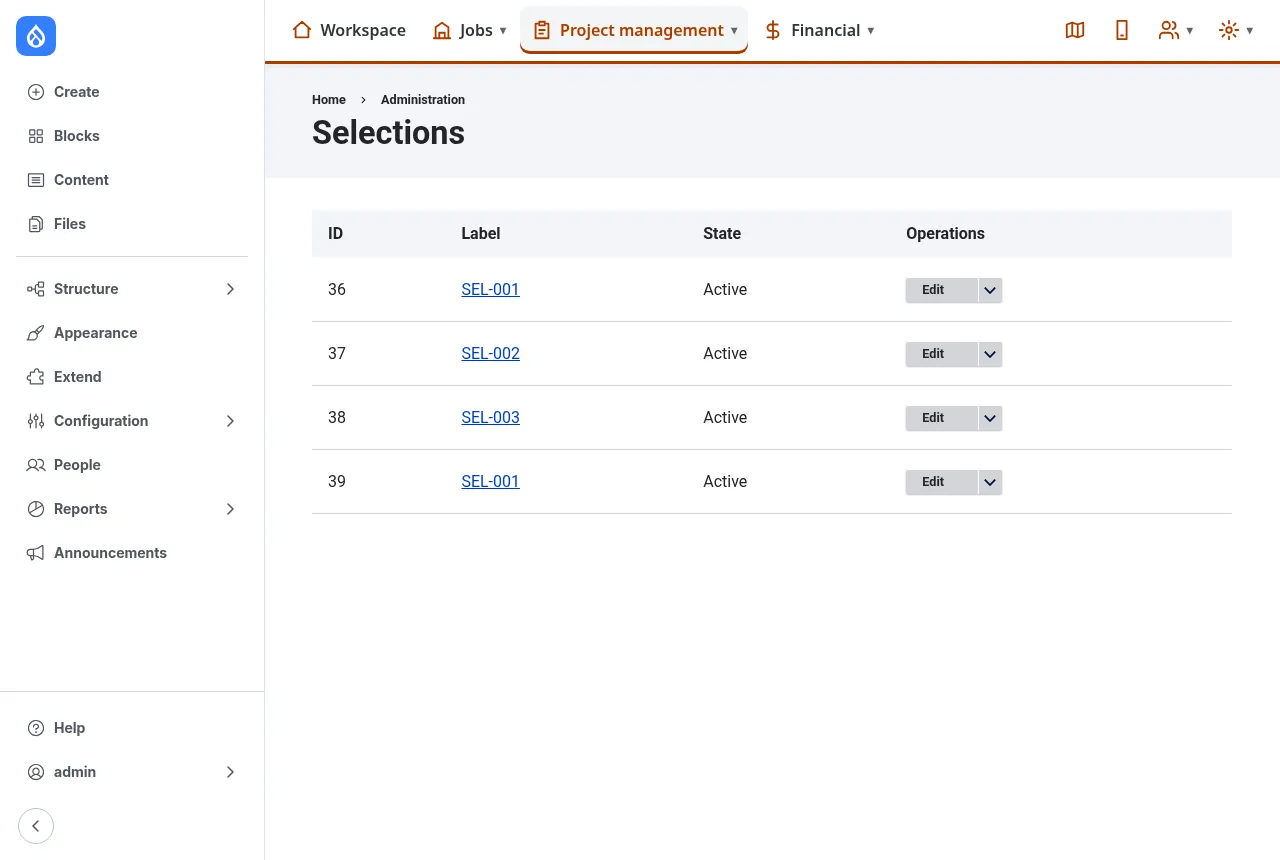
-
16 Selections
One selection
The allowance, the chosen items and the difference the client pays.
Open full size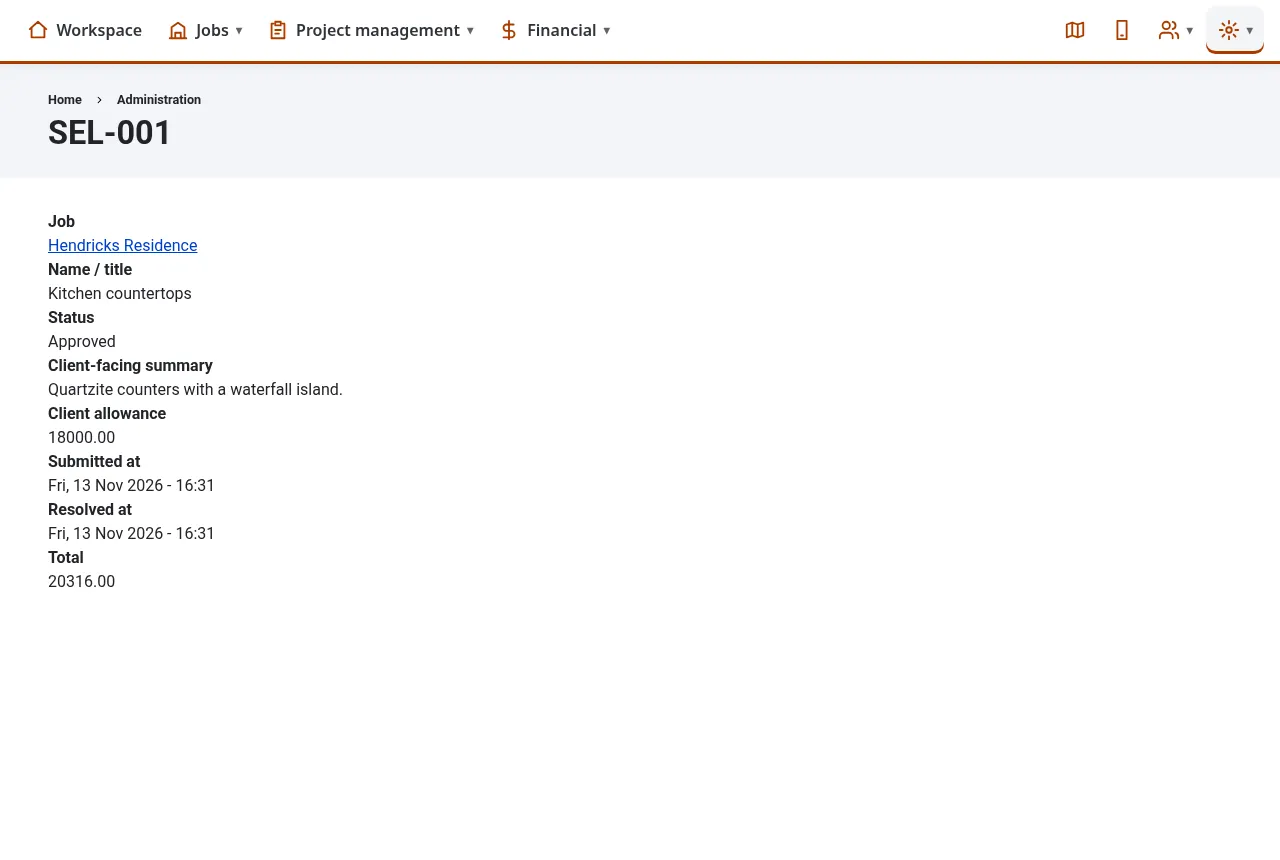
-
-
-
-
20 Billing clients
One invoice
Built from approved change orders, selections and estimate lines.
Open full size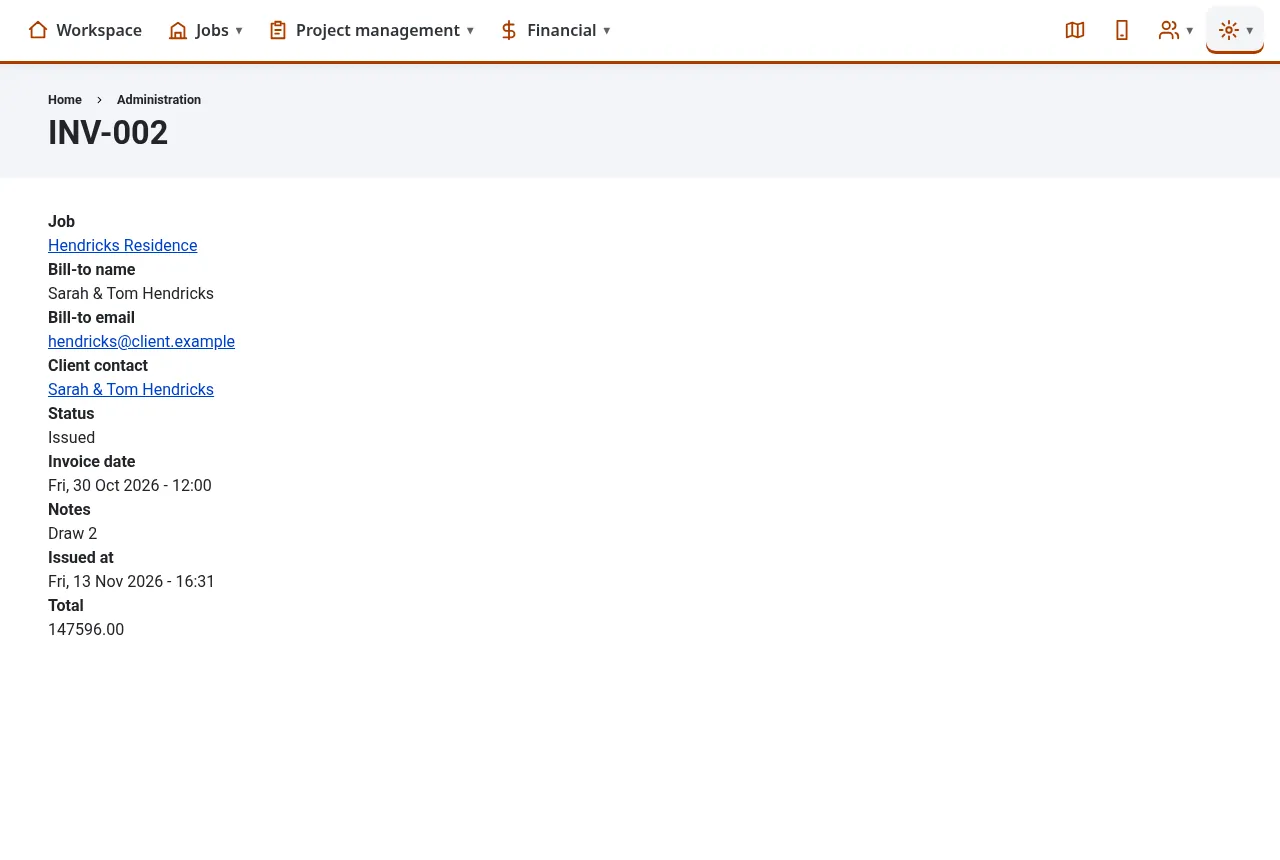
-
21 Costs
QuickBooks matching
Expenses from QuickBooks with a suggested job and cost code to confirm.
Open full size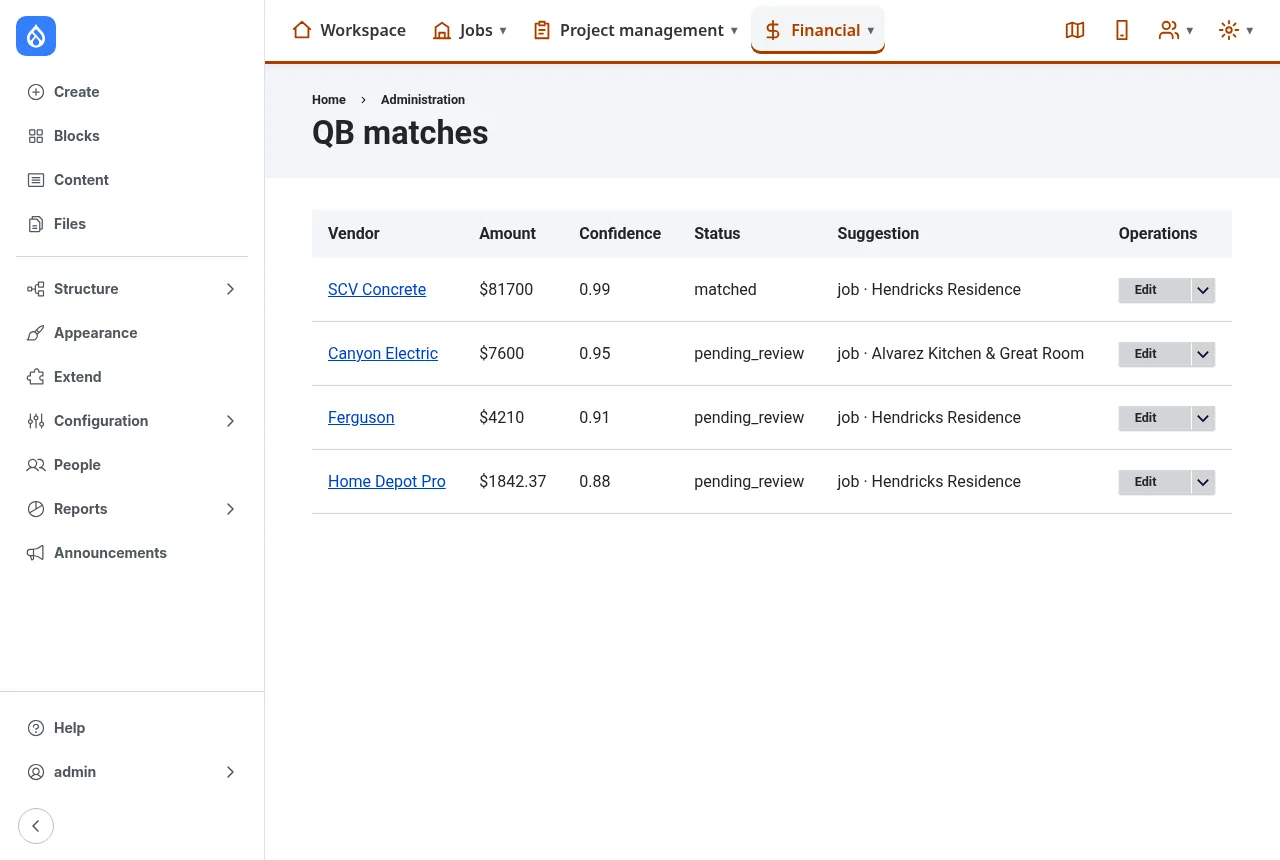
-
-
23 Phone app
Phone app home
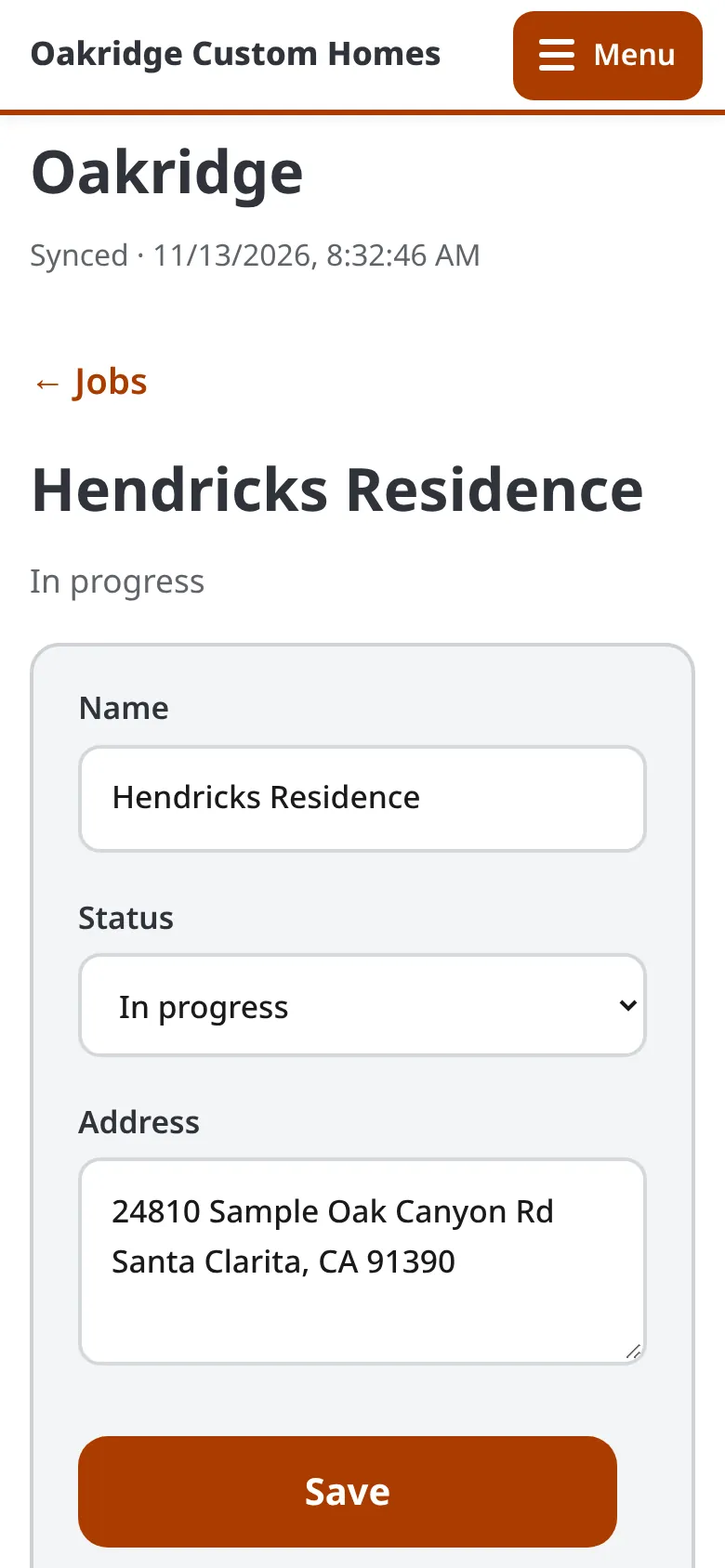
Big buttons for the field. Works offline and syncs when you are back online.
Open full size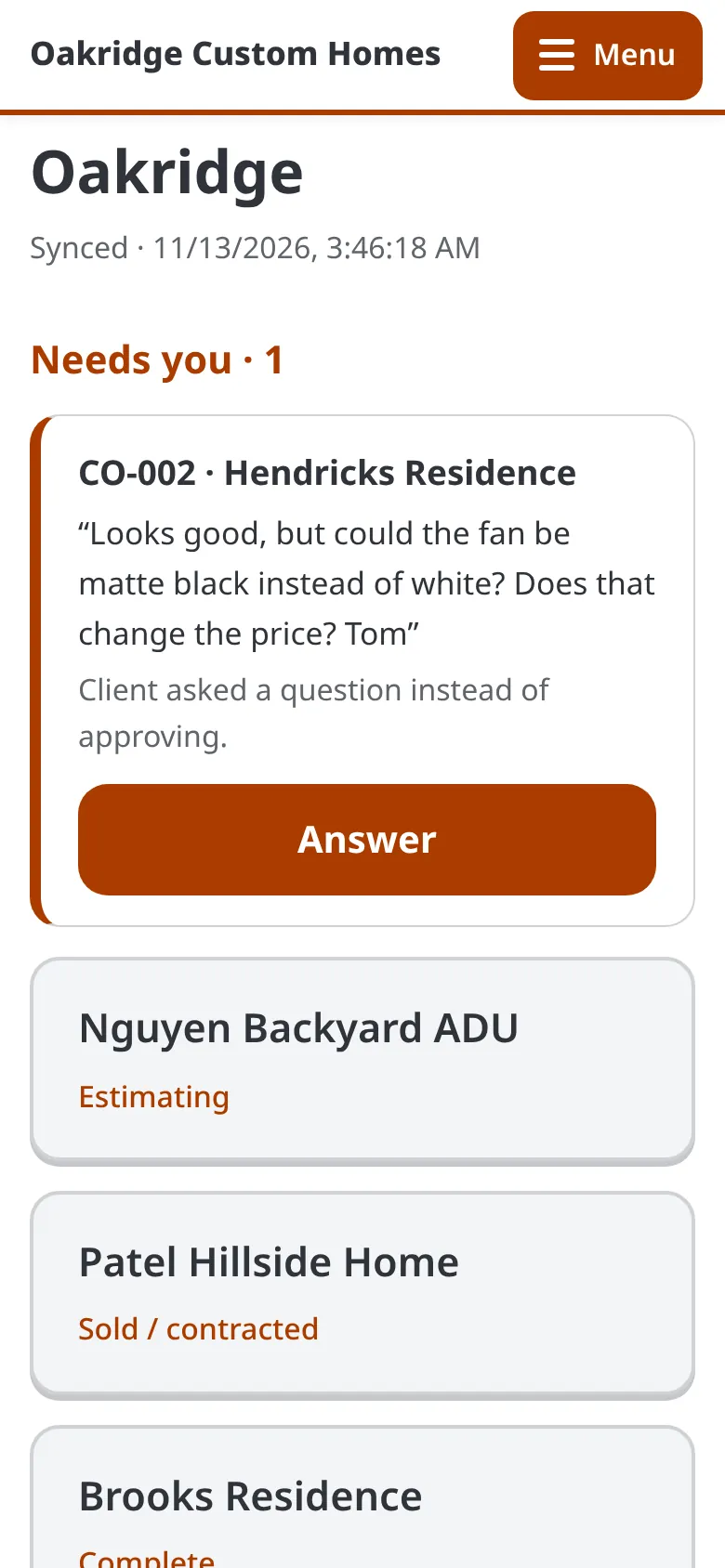
-
-
-
26 Phone app
Phone app: estimate
Edit lines on site. Saved on the phone first, then synced.
Open full size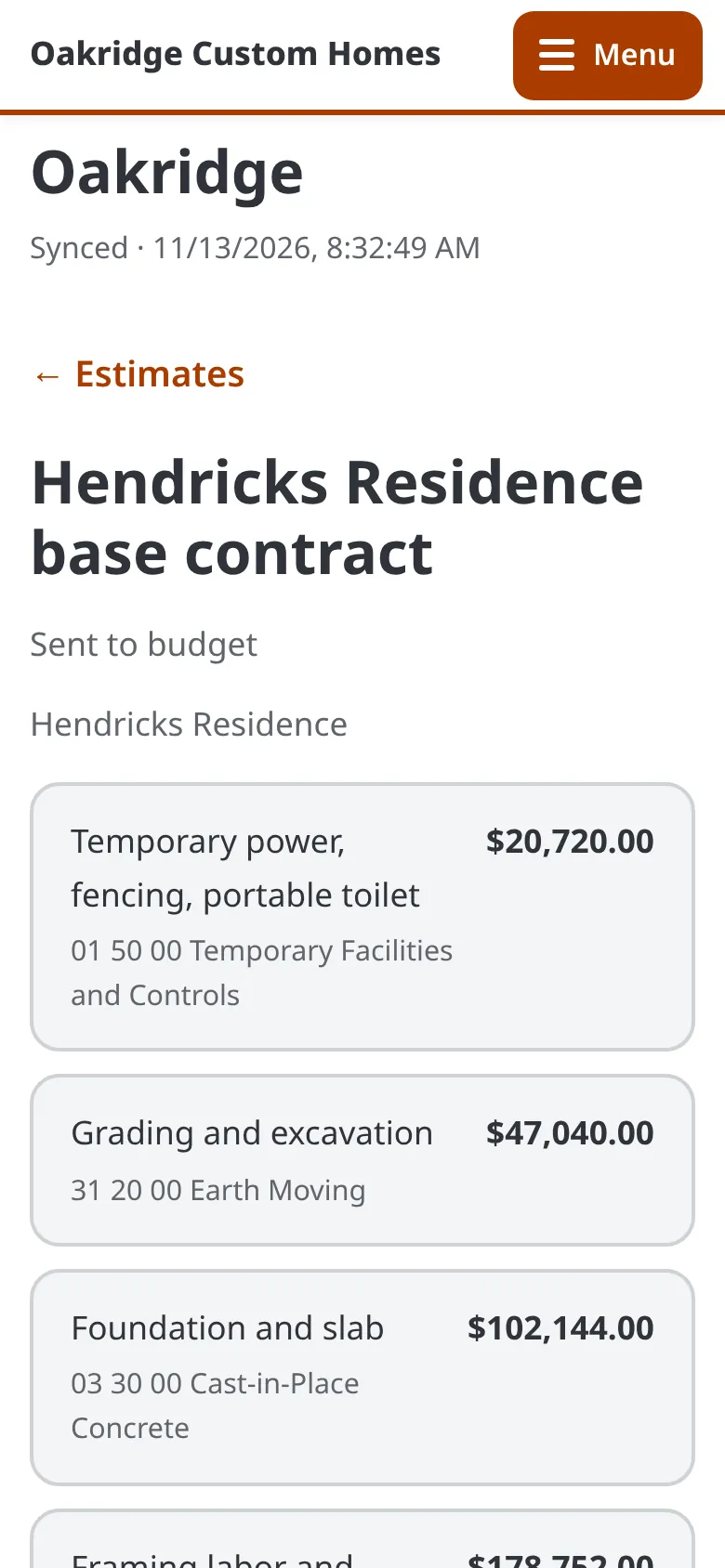
-
27 Phone app
Phone app: review an estimate
Tap Review for a quick check, then tap a card to fix that line.
Open full size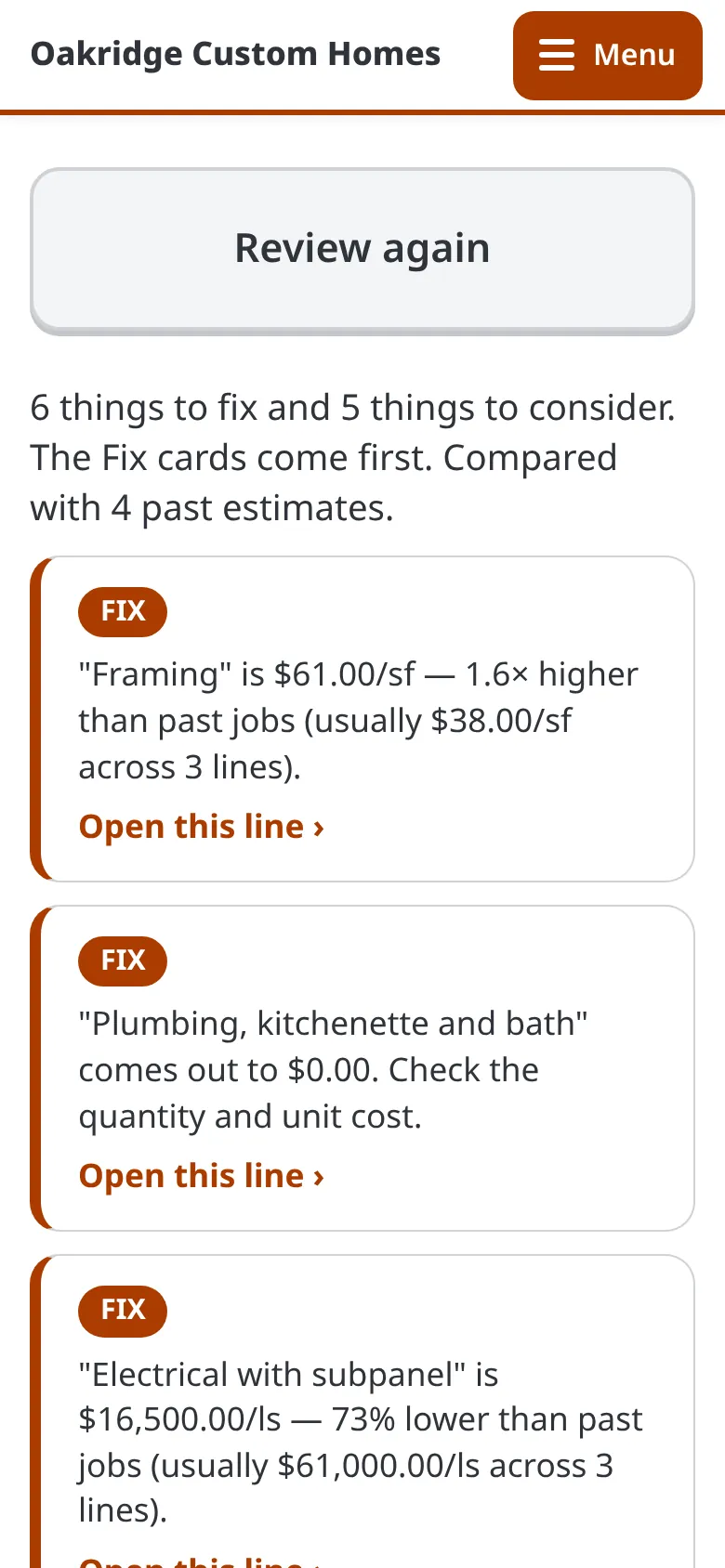
-
-
-
30 Clients
How the price is built
A page for your client: each part of the home in plain words, what drives the cost, and how change orders and selections move the price. You turn it on per job.
Open full size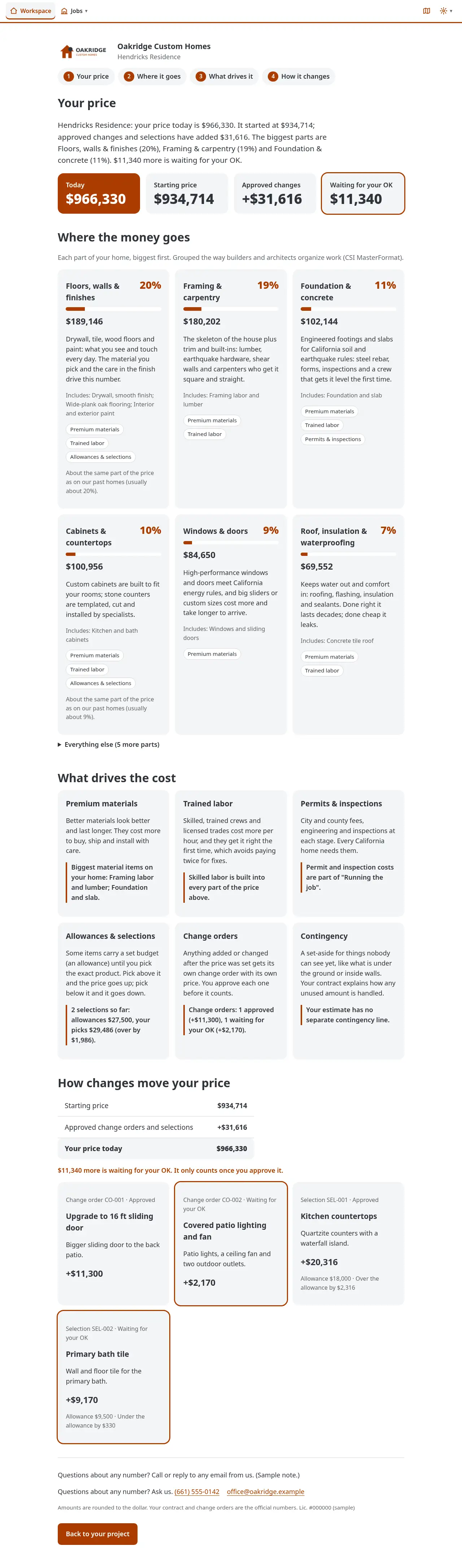
-
31 Setup
Company details
Your name, logo and contact details, used on emails and PDFs.
Open full size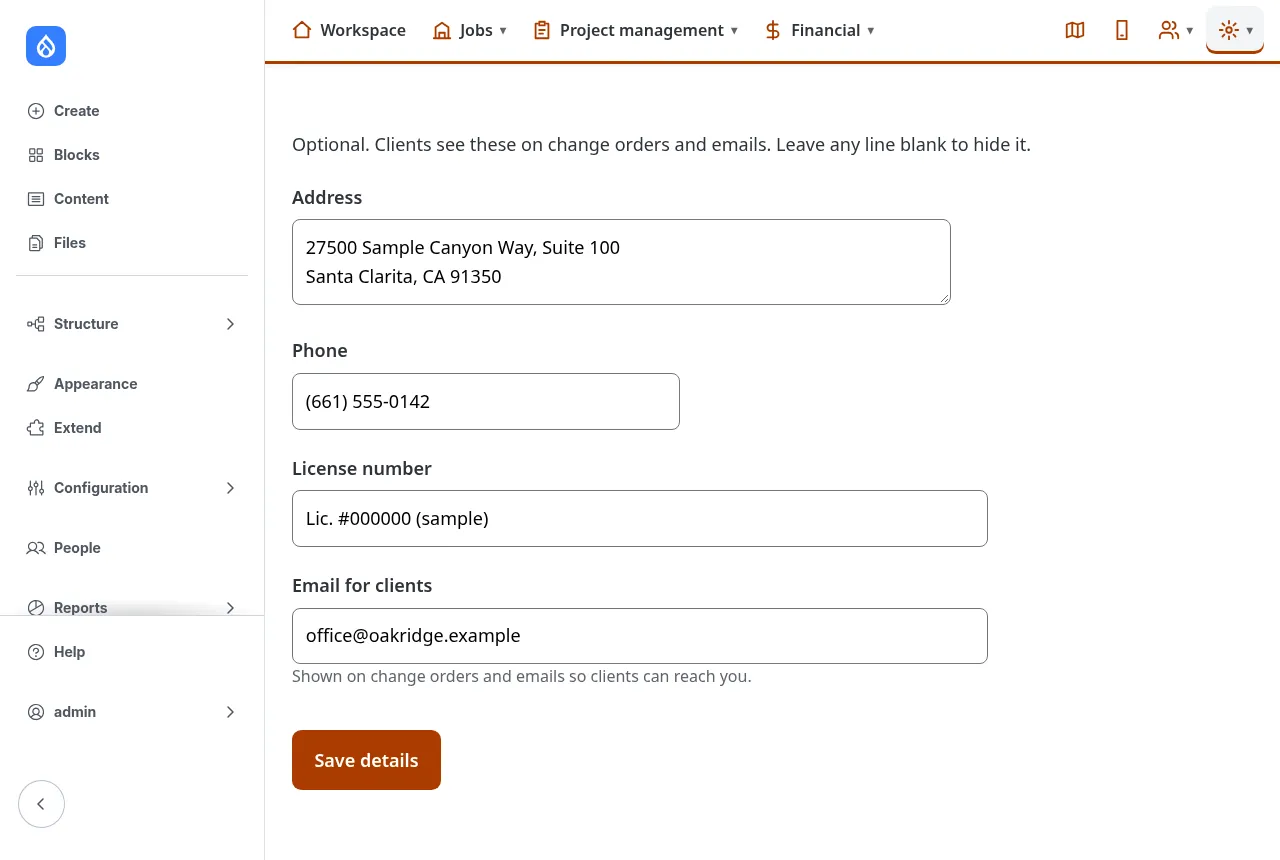
-
32 Setup
Looks
Pick a look: Fired Clay (the default), Night Shift for dark, or Atelier.
Open full size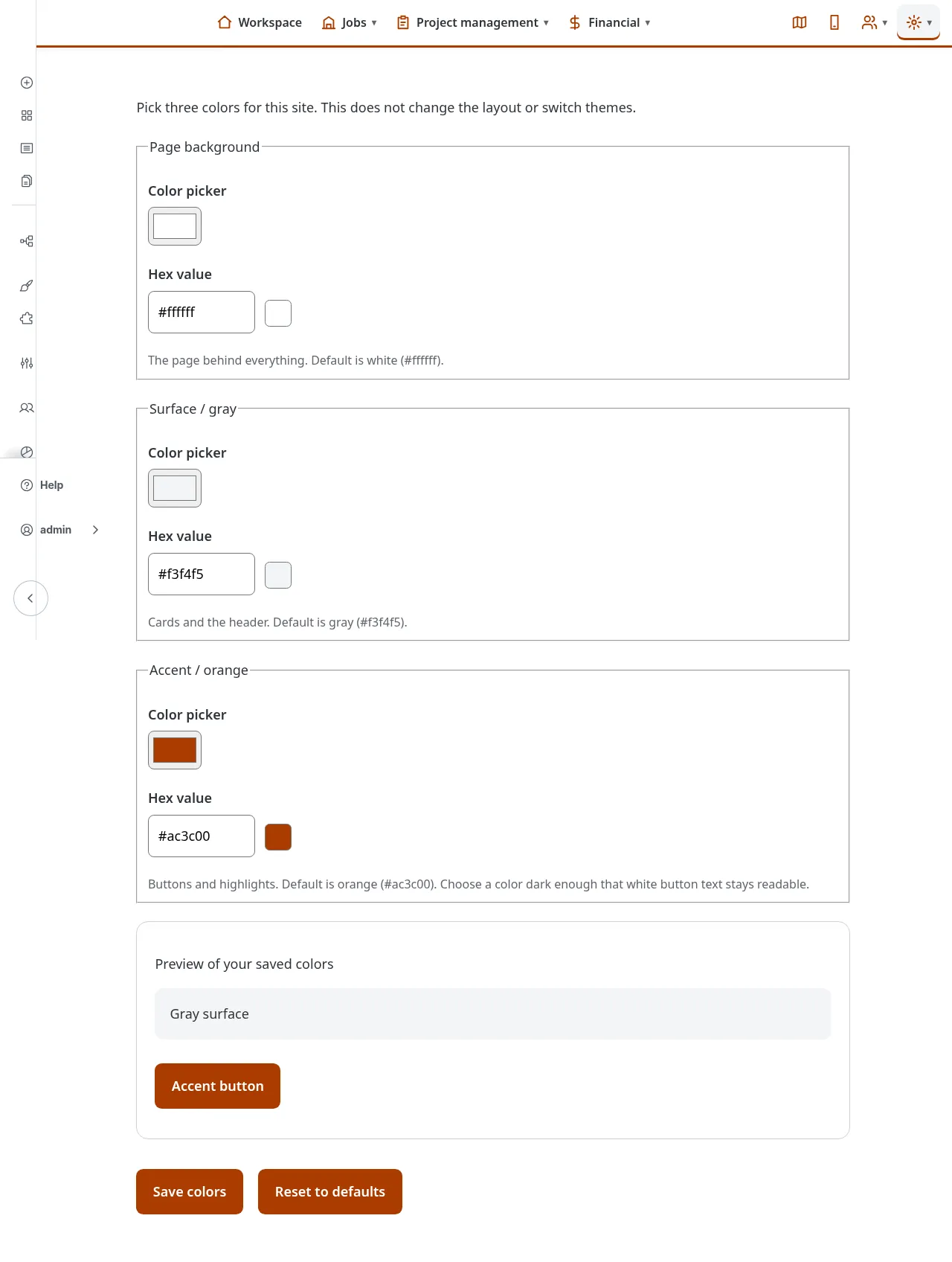
-